
Most restaurants lose money through their menu long before a guest places an order.
That's especially true when the menu lives as a static PDF. The industry's shift away from PDF menus and toward interactive experiences isn't cosmetic. It's a response to lost search visibility, weak mobile usability, and missed revenue opportunities. A 2026 restaurant trends report from Popmenu explicitly calls out the move from PDF menus to interactive experiences, and that matters because 59% of full-service customers are willing to pull up a menu on their phone using a QR code.
A menu in PDF still has a place. It's useful for print, private events, and simple document sharing. But as a primary customer-facing menu, it's usually a compromise. You get convenience on your side and friction on the guest's side. That's rarely a good trade.
Table of Contents
- Designing a Menu That Sells Before It Becomes a PDF
- PDF Export Settings for Print and Mobile Use
- Distributing Your PDF Menu with QR Codes and Links
- The Hidden Costs of a Static PDF Menu
- When to Upgrade from PDF to a Dynamic Menu
- Making the Switch A Practical Checklist
Designing a Menu That Sells Before It Becomes a PDF
A bad menu doesn't become better because you saved it as a PDF.
If your layout is confusing, your pricing cues are clumsy, or your high-margin items are buried, the file format won't save you. Menu engineering comes first. Design is a revenue tool, not a branding exercise.
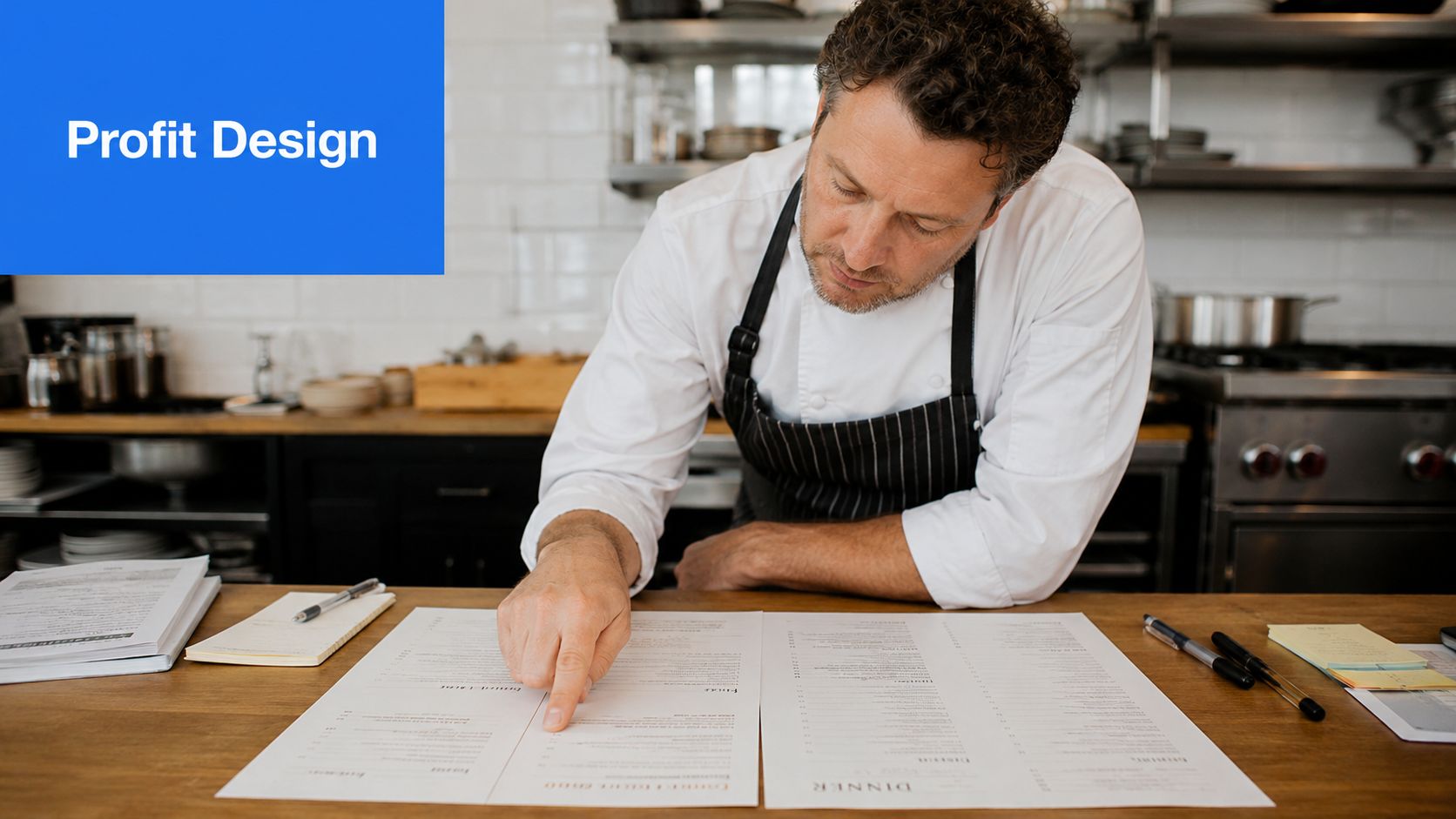
Start with margin, not decoration
Before you open Canva or InDesign, sort your menu into three groups:
- High-margin winners that already sell well
- High-margin sleepers that need better placement or wording
- Low-margin essentials that stay because guests expect them
Your best layout gives priority to the first two groups. Don't let your most profitable dishes sit in the bottom corner while a low-margin crowd-pleaser takes center stage.
Use these rules:
- Lead with profitable categories: Put the sections that matter most to your business where guests see them early.
- Name dishes like you mean it: “Roasted tomato soup” is fine. “Slow-roasted tomato soup with basil oil” sells the experience.
- Build bundles deliberately: Pair mains with profitable add-ons, not random sides.
- Feature one or two stars: A boxed chef special or combo can focus attention without making the page look noisy.
Practical rule: Every menu section should answer one question. What do you want the guest to notice first?
If you want inspiration for cleaner, more commercial layouts, review examples of best designed restaurant menus and notice how the strongest ones control attention instead of listing items passively.
Build visual paths that guide decisions
Guests don't read menus like contracts. They scan. That means placement matters.
The classic eye-tracking idea operators often refer to as the “golden triangle” is still useful as a working principle. Put your high-margin signature item, profitable combo, or premium add-on where the eye naturally lands first, then support it with adjacent choices that feel easy to say yes to.
A few fixes usually improve performance fast:
| Menu element | Bad version | Better version |
|---|---|---|
| Prices | Right-aligned in a vertical column | Tucked beside descriptions |
| Currency cues | Dollar signs everywhere | Cleaner price presentation |
| Specials | Hidden in body text | Boxed or visually separated |
| Add-ons | Mentioned only by staff | Built into the menu path |
Don't over-design it. A menu in PDF should still feel readable at a glance.
Use white space. Keep section names obvious. Limit decorative fonts. If guests need effort to decode the page, they'll default to familiar, lower-value choices.
A profitable menu feels easy. That's why it sells.
PDF Export Settings for Print and Mobile Use
Most menu PDFs fail because operators export one file and expect it to work everywhere.
It won't. The version that looks sharp in a menu holder often feels clunky on a phone. If you insist on using a menu in PDF for both jobs, export two versions.
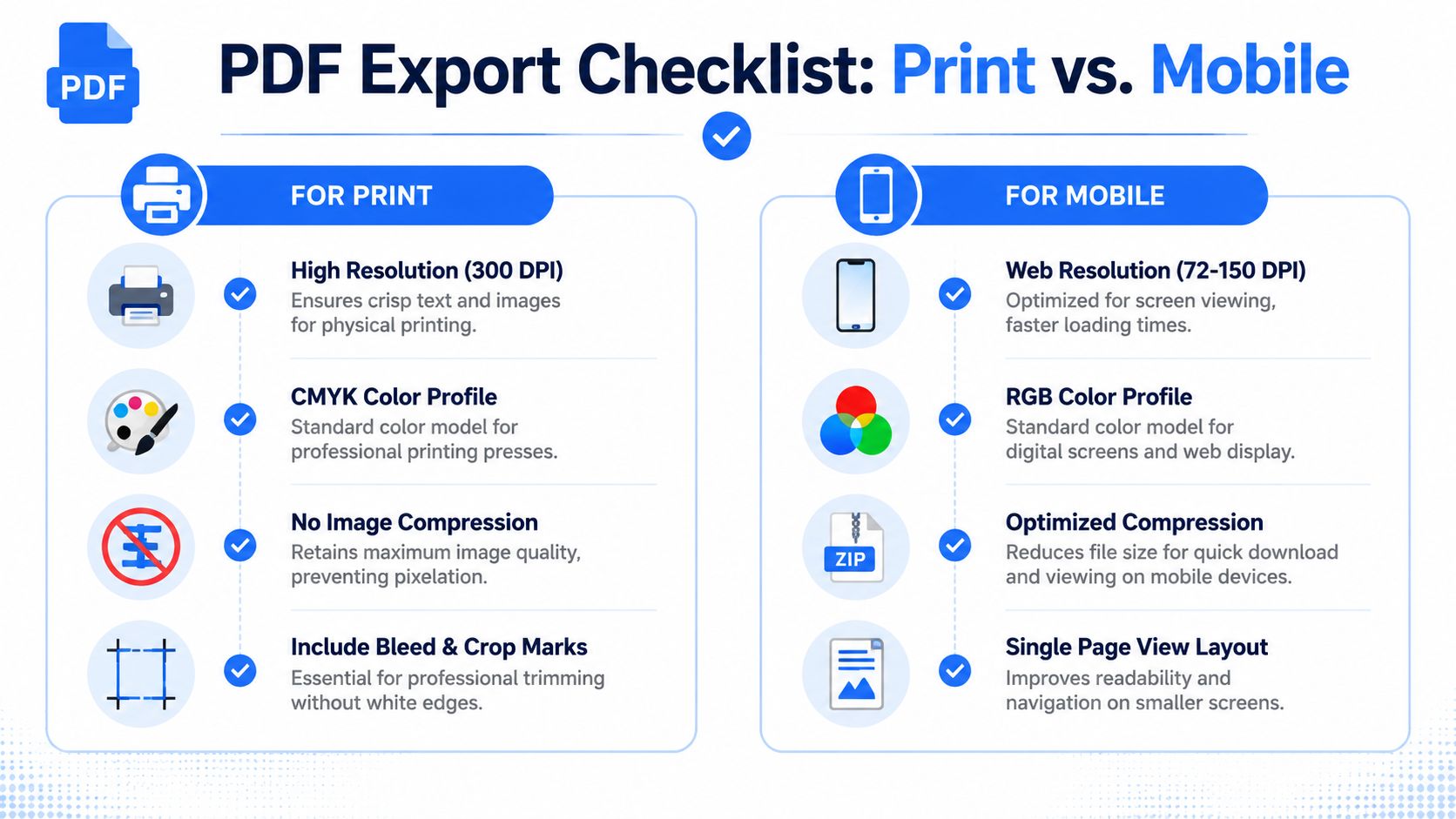
Export one version for print and one for phones
For print, use settings built for physical clarity:
- 300 DPI resolution: Keeps text and images crisp on paper.
- CMYK color profile: Better suited to professional printing.
- No image compression: Prevents weak image quality.
- Bleed and crop marks: Useful when a printer trims the piece.
For mobile, switch your thinking completely:
- 72 to 150 DPI: Better for screen use and smaller files.
- RGB color profile: Matches digital display.
- Optimized compression: Keeps the file lighter.
- Single-page view layout: Makes it easier to read on smaller screens.
If your file is already oversized, a simple compression tool like Squeeze pdf can help reduce weight before you regenerate QR codes or re-upload the file.
What to check before you publish
Open the PDF on your own phone before guests ever see it.
Check these basics:
- Readability: Can someone read item names without pinching and zooming?
- Tap flow: If the file has links, do they work cleanly?
- Page count: Long multi-page PDFs feel heavier than they look.
- Image balance: Attractive food photos help, but huge embedded files slow everything down.
- Orientation: Portrait layouts usually feel easier on phones than wide pages.
A practical workflow in Canva or Adobe InDesign is simple. Export your print file first. Then duplicate the design and create a mobile version with larger text, shorter descriptions, and less visual clutter.
Your printer and your guest's phone need different files. Treating them as the same job causes most PDF menu problems.
Distributing Your PDF Menu with QR Codes and Links
A QR code only works if the menu opens fast, reads easily, and helps the guest decide what to buy.
Many restaurants treat QR distribution like a printing task. It is a sales and service decision. If the code sends guests to a slow, awkward PDF, you have added friction at the exact moment they should be choosing drinks, starters, and add-ons.
Where PDF distribution breaks down
QR placement still matters. Codes need a minimum print size of 2×2 cm, strong contrast such as black on white, and materials that survive cleaning and spills. Placement matters just as much. QR codes in centerpieces or beverage coasters increase scan frequency by 18% compared with wall posters, because they're closer to the decision point, according to restaurant QR code guidance from Supercode.
Supercode also reports that dynamic QR codes linked to mobile-optimized digital menus load in under 3 seconds, and 68% of diners abandon menus that load slower than 5 seconds. It also notes that custom-branded QR codes with a clear call to action can achieve 22 to 35% higher scan rates than generic codes.
The business problem is simple. A static PDF can win the scan and still lose the order.
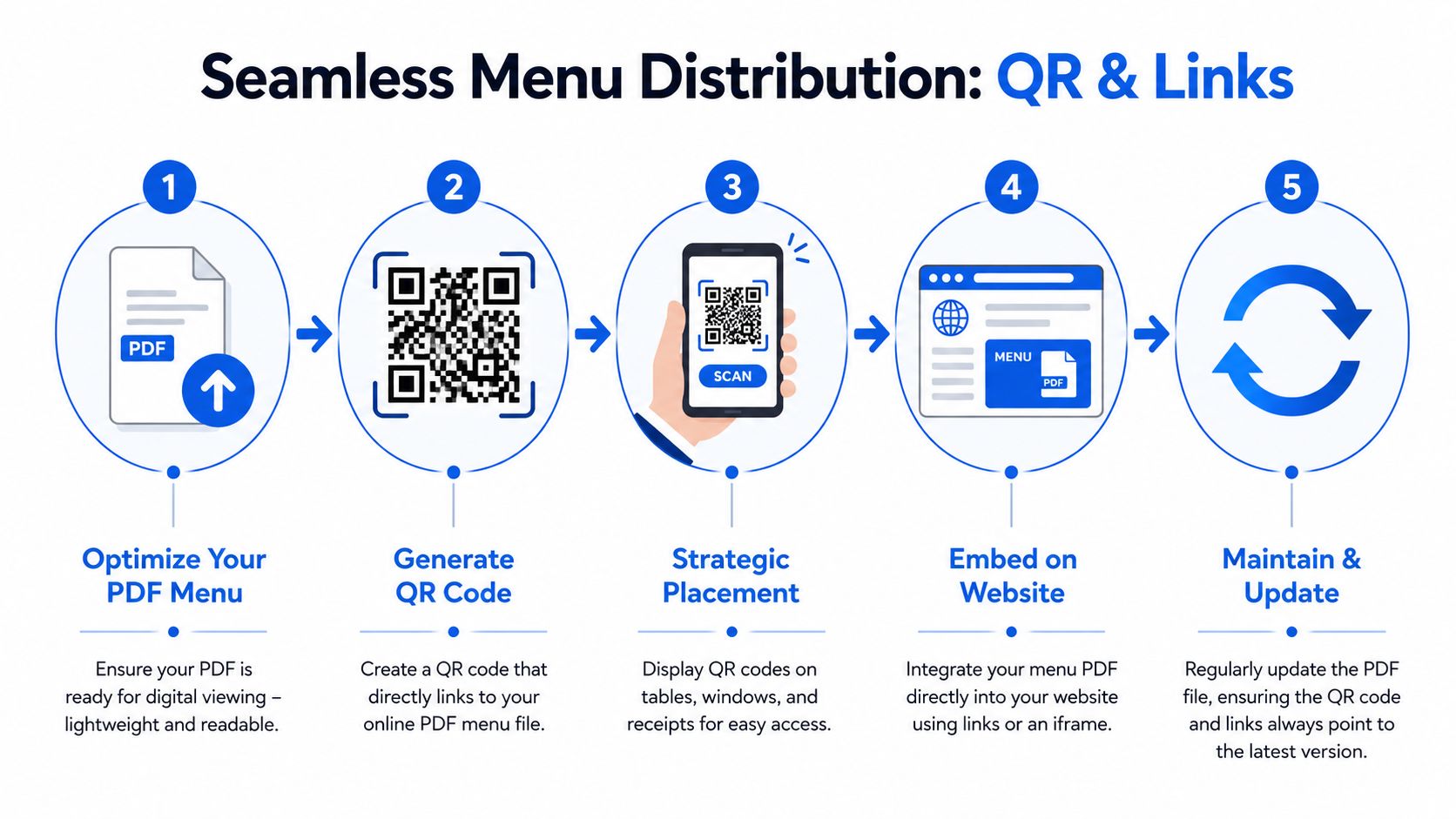
If you use QR codes, use them with intent. Put them where guests make decisions: table tents, check presenters, takeaway packaging, the host stand, and the front window for walk-bys. Then make sure the destination matches the speed of the scan. A dynamic QR code menu setup gives you more control than a fixed PDF link, especially if prices, specials, or dayparts change often.
Here's the embedded video version of the workflow many operators try to build around QR access:
How to reduce friction if you still use PDFs
If you still distribute a PDF menu, tighten the basics:
- Use dynamic QR codes: Change the destination later without reprinting every table card or window sticker.
- Host the file somewhere stable: A broken link at the table costs trust fast.
- Use short, clean links: If you also print the URL on receipts or signage, this guide to short links with QR codes can help.
- Add a clear prompt: “Scan for Menu” beats an unexplained square.
- Link directly to the file or landing page: Do not send guests through extra clicks just to reach the menu.
A common in-store result looks like this. The guest scans. The PDF opens slowly. They pinch to zoom, scroll past sections, miss profitable modifiers, then ask staff to explain options anyway.
That is not efficient service. It is a slower version of the same labor, with lower conversion potential.
Use PDF distribution as a temporary tool, not a long-term menu strategy.
The Hidden Costs of a Static PDF Menu
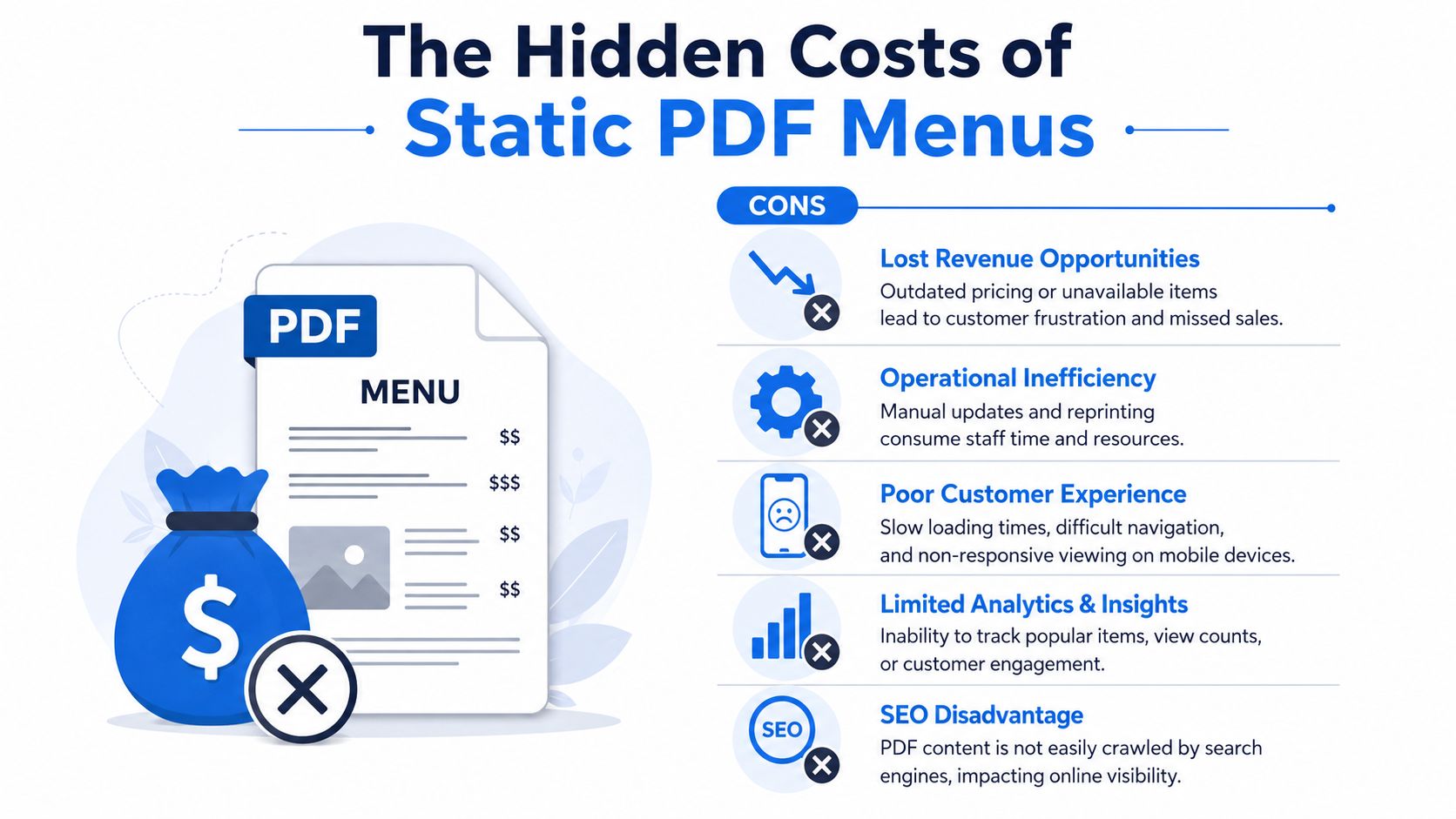
A static PDF menu is not a low-cost option. It is a slow leak in revenue, labor, and decision quality.
PDFs limit visibility and weaken menu decisions
A PDF can display your menu. It does very little to help sell it.
Search is the first problem. A static file is harder to turn into dish-level discovery, which makes it less useful for restaurants trying to win searches for specific intents like vegan brunch, gluten-free pasta, or late-night cocktails. If those searches matter to your business, a static PDF leaves money on the table.
The second problem is insight. PDFs rarely show what guests engage with. You cannot easily see which sections get attention, which items get ignored, or where interest drops off. That leaves operators making pricing, placement, and promotion decisions from instinct instead of observed behavior.
Datassential's menu research makes the broader point clear. 70% of U.S. consumers say their food preferences are driven primarily by what they encounter on restaurant menus, according to Datassential's menu adoption research. If the menu influences demand that strongly, using a format that gives you little feedback is a management problem, not just a design choice.
If your menu cannot show what guests respond to, you are still guessing at what sells.
A stronger operating system earns its keep with tools built for restaurant menu management software that make updates faster and give operators a clearer view of what is working across items, dayparts, and locations.
Manual updates create real operating cost
Every change to a PDF adds friction.
When an item is sold out, a modifier changes, an allergen note needs correction, or pricing shifts, someone has to update the source file, export a new version, upload it, replace the old link if needed, and hope guests are not still opening the outdated file. That process does not look expensive on paper. It becomes expensive in interruptions, errors, and staff workarounds.
This gets worse in businesses that change often. Cafés with daily specials, bars with rotating taps, seasonal restaurants, and multi-location groups all pay a higher penalty for static files.
Guests notice the mismatch fast. The menu says one price. The server says another. The file shows an item that is no longer available. Staff then spend time apologizing, explaining, and redirecting orders instead of selling. That is operational drag, and it comes with a revenue penalty.
A static PDF still has a place for banquet packets, catering documents, or investor materials. As a live restaurant menu, it usually becomes a recurring source of preventable mistakes.
When to Upgrade from PDF to a Dynamic Menu
The right time to upgrade isn't when your PDF looks old. It's when your menu needs to do more than display text.
If you want the menu to increase spend, reduce staff explanation, support translations, handle allergy filters, or adapt across locations, static PDFs stop being practical.
A practical comparison
Here's the cleanest way to consider it:
| Business outcome | Static PDF | Dynamic menu |
|---|---|---|
| Upselling | Passive | Built into the ordering path |
| Updates | Manual | Instant across devices |
| Translations | Clumsy | Easier to present per guest |
| Availability changes | Slow to reflect | Easier to sync quickly |
| Analytics | Limited | More actionable |
| Mobile usability | Often awkward | Designed for the phone |
The revenue case is already strong. Digital ordering platforms generate a 12 to 22% lift in average order value compared with traditional ordering, and tourist-focused restaurants using dynamic QR menus with strong visuals and translations report 23 to 38% higher average spend per tourist, based on digital ordering performance data from Foxi Food.
That doesn't mean every operator needs a complex app. Most don't. It means a dynamic menu earns its keep when it actively guides better choices.
The tipping points are operational, not just digital
Upgrade from a menu in PDF when any of these are true:
- Your menu changes often: Seasonal dishes, market pricing, rotating drinks, or daily specials make static files annoying.
- Your staff repeats the same upsell scripts all day: A digital menu can present add-ons, bundles, and pairings consistently.
- You serve tourists or mixed-language audiences: Visuals and translations help guests order confidently.
- You manage multiple sites: Standardizing updates across locations matters.
- You want item-level learning: You need better visibility into what performs.
A casual operator evaluating platforms should compare menu control, update speed, POS fit, and reporting. If you're reviewing software options, restaurant menu management software is the category worth evaluating, not just “QR code generators.”
One practical example is RevMenue, which replaces static PDFs with fast-loading QR menus, supports instant updates, and works alongside existing POS and payment providers. That's the type of setup that makes sense when your menu needs to function as an operating tool, not just a file.
The smartest time to upgrade is before your menu starts creating daily workarounds.
Making the Switch A Practical Checklist
Switching away from a PDF menu should save labor, reduce ordering friction, and improve what guests buy. If your rollout does not do those three things, you are replacing one inconvenience with another.
Treat the change like an operating decision with revenue consequences. A static PDF hides sold-out items, forces staff to explain modifiers repeatedly, and slows every menu update into a manual task. A dynamic menu fixes those problems only if you set up the menu logic correctly, test the full ordering path, and prepare staff to guide guests without creating confusion.
What a sensible rollout looks like
A practical rollout starts with menu structure, not design polish. Build the menu first. That means categories, modifiers, allergen tags, item availability, add-ons, and upsell logic. If those rules are messy in the back end, the guest experience will be messy on the table.
Implementation guidance from Jamezz's QR ordering implementation guide reinforces the same point. Operators need to test the full path from scan to browse to order to POS to kitchen to payment before launch. The guide also notes that menus with complex modifiers and ordering rules take more setup time than simple concepts.
That is where operators lose money. Not in the software fee. In rushed configuration, bad POS matching, and week-one service mistakes that force staff to step in and rescue orders.
Your operator checklist
Use this checklist before you replace your PDF:
- Document your real menu rules: Include modifiers, combos, allergen details, unavailable-item handling, and add-on logic.
- Confirm POS compatibility early: Do this before setup starts, not during launch week.
- Build for a phone screen first: Guests order on mobile. A desktop preview is not the standard that matters.
- Test every ordering step: Scan, browse, customize, submit, send to POS, route to kitchen, and complete payment.
- Train staff on guest guidance: They should help hesitant guests quickly and keep traditional service available during rollout.
- Run a soft launch first: Watch where guests stall, what staff must explain, and which menu paths create mistakes.
- Check every table touchpoint: QR codes must be easy to find, easy to scan, and placed where ordering decisions happen.
- Review week-one questions: Repeated guest questions usually point to weak menu structure or unclear wording.
Keep the launch boring. Boring launches make money.
If staff are still answering the same modifier questions, fixing item availability manually, or explaining why the PDF does not match the kitchen, the system is not fully set up yet. Fix that before you scale usage across the floor.
A factual example. RevMenue offers instant menu updates, QR ordering, and reporting while fitting alongside existing POS and payment setups. That type of system makes sense when your goal is not just to digitize the menu, but to cut operating drag and make the menu easier to sell from.